Showing posts with label ADO.NET Entity Data Model. Show all posts

Wednesday, December 5, 2012

How to find the entity framework version in your Machine

The ADO.Net Entity Framework comes in various versions starting from 3.5, the latest version at the time of writing this post is 6. Each version has its own set of features, so naturally you will need to know the version which you are working with to make use of the features in that version.

To know the version of the Entity Framework in your machine follow the steps below.

ADO.Net Entity Framework call Stored Procedures with Parameters

To work with Model using the ADO.Net Entity Data Model, we should first create an ADO.Net Entity Data Model class, refer to the post Creating your First ADO.Net Entity Data Model to see on how to create an ADO.Net Entity Data Model, that maps to the physical database.

Once you have created the ADO.Net Entity Data Model class, we can proceed with querying the model objects. In this post we shall see on how to use the ADO.Net Entity Data Model to call a Stored Procedure and pass parameters to the Procedure.

In this post, we will use an existing Stored procedure and call it using ADO.Net Entity Framework.

ALTER PROCEDURE [dbo].[InsertDepartment]
      @DepartmentName varchar(50)
AS
BEGIN
      INSERT INTO Department (Name) Values (@DepartmentName);
      SELECT ID, Name FROM DEPARTMENT WHERE ID = @@IDENTITY;
END

If you do not have a Stored procedure, create one. Once you have the Procedure in place, follow the below steps to map the Procedure to the ADO.Net Entity Framework.

1. Open the Model class (EmployeeModel.edmx)
2. Right click on the Designer and select Update Model from Database
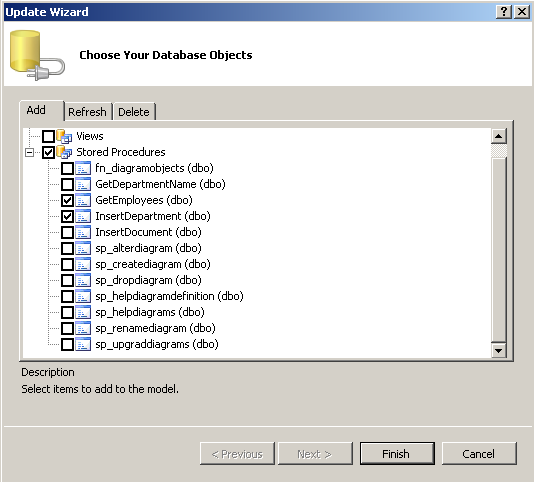
3. This opens up the Object Browse, Expand the StoredProcedure node in the Object Tree and select the Stored Procedures to be used.


4. The Selected Procedures get added to the Stored procedure Node, in the Model Browser
5. Right click on the Designer and select Add -> Function Import
6. In the Popup which appears, select the Stored procedure Name, and give a Mapping Function Name.
7. Set the Return Type to one of the Objects in the Model, here I will set it as Department.


8. The new Function gets added to the Model under the Function Imports node in the Model Browser.
9. We have now created the mapping, call the mapping function from the code as follows.

EmployeesEntities dbContext = new EmployeesEntities();
var dep = dbContext.InsertDepartment("Accounts");

10. Once the code executes, a new row gets inserted into the Departments table.

One limitation of this approach is that the Entity Framework expects the Stored Procedure to return results which are compatible with Entity Framework. In this case, the procedure was returning results which were compatible with the Department type, hence it works fine, but if I want to create a custom statement by joining other tables and want to return the result then this approach will not work.

If the procedure returns a custom type which is not compatible with the Entities defined then this approach then we will have to define a Complex Type and map the return value of the procedure to the Complex Type.

The Complex Type definition is available only in Entity Framework 4 and above versions which ships with .Net Framework 4 and Visual Studio 2010. .Net Framework 3.5 SP1 with Visual Studio 2008 SP1 uses Entity Framework 3.5, which does not have the Complex Type definition option.

ADO.Net Entity Framework call Stored Procedures

In order to select data from a Model using the ADO.Net Entity Data Model, we should first create an ADO.Net Entity Data Model class, refer to the post Creating your First ADO.Net Entity Data Model to see on how to create an ADO.Net Entity Data Model, that maps to the physical database.

Once you have created the ADO.Net Entity Data Model class, we can proceed with querying the model objects. In this post we shall see on how to use the ADO.Net Entity Data Model to call a Stored Procedure and bind the results of the procedure to a GridView.

In this post, we will use an existing Stored procedure and call it using ADO.Net Entity Framework.

ALTER PROCEDURE [dbo].[GetEmployees]
AS
BEGIN
      SET NOCOUNT ON;

      SELECT E.ID, E.Name,E.DOB, E.DOJ,E.Phone,E.Email, D.Name as Department, E.Salery
       From Employee E INNER JOIN DEPARTMENT D
      On E.DepartmentID = D.ID
END

If you do not have a Stored procedure, create one. Once you have the Procedure in place, follow the below steps to map the Procedure to the ADO.Net Entity Framework.

1. Open the Model class (EmployeeModel.edmx)
2. Right click on the Designer and select Update Model from Database
3. This opens up the Object Browse, Expand the Stored Procedure node in the Object Tree and select the Stored Procedures to be used.

4. The Selected Procedures get added to the Stored procedure Node, in the Model Browser
5. Right click on the Designer and select Add -> Function Import
6. In the Popup which appears, select the Stored procedure Name, and give a Mapping Function Name.
7. Set the Return Type to one of the Objects in the Model, here I will set it as Employee.

8. The new Function gets added to the Model under the Function Imports node in the Model Browser.
9. We have now created the mapping, call the mapping function from the code as follows.

EmployeesEntities dbContext = new EmployeesEntities();
var emp = dbContext.GetEmployees();
//
grdEmployees.DataSource = emp.ToList();
grdEmployees.DataBind();

10. That’s it we have called a Stored Procedure using ADO.Net Entity Framework.

One limitation of this approach is that the Entity Framework expects the Stored Procedure to return results which are compatible with Entity Framework. In this case, the procedure was returning results which were compatible with the Employee type, hence it works fine, but if I want to create a custom statement by joining other tables and want to return the result then this approach will not work.

If the procedure returns a custom type which is not compatible with the Entities defined then this approach then we will have to define a Complex Type and map the return value of the procedure to the Complex Type.

The Complex Type definition is available only in Entity Framework 4 and above versions which ships with .Net Framework 4 and Visual Studio 2010. .Net Framework 3.5 SP1 with Visual Studio 2008 SP1 uses Entity Framework 3.5, which does not have the Complex Type definition option.
Tuesday, December 4, 2012

Deleting Data using ADO.Net Entity Framework

In order to select data from a Model using the ADO.Net Entity Data Model, we should first create an ADO.Net Entity Data Model class, refer to the post Creating your First ADO.Net Entity Data Model to see on how to create an ADO.Net Entity Data Model, that maps to the physical database.

Once you have created the ADO.Net Entity Data Model class, we can proceed with querying the model to select data. In this post we shall see on how to use the ADO.Net Entity Data Model to DELETE a record in the Employee table.

1. Create an Object of the ADO.Net Entity Data Model class
2. Get the Object of the Employee whose details needs to be Deleted
3. Delete the Object
4. Commit changes to the Model

Here is the code to DELETE rows using the ADO.Net Entity Data Model

EmployeesEntities dbContext = new EmployeesEntities();
//
// Get The Object of the Selected Employee
Employee objEmployee = (from emp in dbContext.Employee
                        where emp.ID == 235
                        select emp).First();
//
// Delete the Employee Object and Save the Detils.
dbContext.DeleteObject(objEmployee);
dbContext.SaveChanges();

5. Once we execute the code, a record for the Employee with ID 235 will get deleted from the Employee Table.

ht: normal;mso-layout-grid-align:none;text-autospace:none'>objEmployee.Salery = 7500;
//
// Save the Employee Details

Updating Data using ADO.Net Entity Framework

In order to select data from a Model using the ADO.Net Entity Data Model, we should first create an ADO.Net Entity Data Model class, refer to the post Creating your First ADO.Net Entity Data Model to see on how to create an ADO.Net Entity Data Model, that maps to the physical database.

Once you have created the ADO.Net Entity Data Model class, we can proceed with querying the model to select data. In this post we shall see on how to use the ADO.Net Entity Data Model to UPDATE a record in the Employee table.

1. Create an Object of the ADO.Net Entity Data Model class
2. Get the Object of the Employee whose details needs to be Updated
3. Update the details in the Employee Object
4. Commit changes to the Model

Here is the code to UPDATE rows using the ADO.Net Entity Data Model

EmployeesEntities dbContext = new EmployeesEntities();
//
// Get the Existing details of the Employee
Employee objEmployee = (from emp in dbContext.Employee
                        where emp.Name == "Tom"
                        select emp).First();
//
// Update the Employee Details
objEmployee.Name = "Joseph";
objEmployee.DOB = "12/12/1962";
objEmployee.DOJ = "02/02/2002";
//
// Save the Employee Details

Updating Data with Foreign Key Reference using ADO.Net Entity Framework

In order to select data from a Model using the ADO.Net Entity Data Model, we should first create an ADO.Net Entity Data Model class, refer to the post Creating your First ADO.Net Entity Data Model to see on how to create an ADO.Net Entity Data Model, that maps to the physical database.

Once you have created the ADO.Net Entity Data Model class, we can proceed with querying the model to select data. In this post we shall see on how to use the ADO.Net Entity Data Model to UPDATE a record in the Employee table, which references the Department Table through the Foreign Key DepartmentID 


1. Create an Object of the ADO.Net Entity Data Model class
2. Get the Object of the Employee whose details needs to be Updated
3. Update the details in the Employee Object
4. Commit changes to the Model

Here is the code to UPDATE rows using the ADO.Net Entity Data Model

EmployeesEntities dbContext = new EmployeesEntities();
//
// Get the Existing details of the Employee
Employee objEmployee = (from emp in dbContext.Employee
                        where emp.Name == "Tom"
                        select emp).First();
//
// Update the Employee Details
objEmployee.Name = "Joseph";
objEmployee.DOB = "12/12/1962";
objEmployee.DOJ = "02/02/2002";
objEmployee.Phone = "222-222-2222";
objEmployee.Email = "joseph@abcsoftware.com";
objEmployee.Department = (from dep in dbContext.Department
                          where dep.Name == "Sales"
                          select dep).First();
objEmployee.Salery = 7500;
//
// Save the Employee Details

Inserting Data using ADO.Net Entity Data Model

In order to select data from a Model using the ADO.Net Entity Data Model, we should first create an ADO.Net Entity Data Model class, refer to the post Creating your First ADO.Net Entity Data Model to see on how to create an ADO.Net Entity Data Model, that maps to the physical database.

Once you have created the ADO.Net Entity Data Model class, we can proceed with querying the model to select data. In this post we shall see on how to use the ADO.Net Entity Data Model to INSERT a record into the Employee table.


1. Create an Object of the ADO.Net Entity Data Model class
2. Create an Object of the Employee Class
3. Add the details to be inserted to the Employee Object
4. Add the Employee Object to the ADO.Net Entity Data Model
5. Commit changes to the Model

Here is the code to INSERT rows using the ADO.Net Entity Data Model

EmployeesEntities dbContext = new EmployeesEntities();
//
Employee objEmployee = new Employee();
objEmployee.Name = "Chris";
objEmployee.DOB = "11/11/1967";
objEmployee.DOJ = "05/01/2009";
//
dbContext.AddToEmployee(objEmployee);
dbContext.SaveChanges();

6. Once we execute the code, a new record for Chris will get Inserted into the Employee Table.
Related Post
Concepts
ADO.NET Entity Framework
ADO.NET Entity Framework Architecture
Entity Data Model
LINQ To SQL Vs ADO.Net Entity Framework


Programming
ADO.Net Entity Data Model Prerequisite
Creating your First ADO.Net Entity Data Model
Selecting Data using ADO.Net Entity Framework
Selecting Data by Joining Tables using ADO.Net Entity Framework
Inserting Data using ADO.Net Entity Framework
Inserting Data with Foreign Key Reference using ADO.Net Entity Framework
Updating Data using ADO.Net Entity Framework
Updating Data with Foreign Key Reference using ADO.Net Entity Framework
Deleting Data using ADO.Net Entity Framework

Inserting Data with Foreign Key Reference using ADO.Net Entity Framework

In order to select data from a Model using the ADO.Net Entity Data Model, we should first create an ADO.Net Entity Data Model class, refer to the post Creating your First ADO.Net Entity Data Model to see on how to create an ADO.Net Entity Data Model, that maps to the physical database.

Once you have created the ADO.Net Entity Data Model class, we can proceed with querying the model to select data. In this post we shall see on how to use the ADO.Net Entity Data Model to INSERT a record into the Employee table, which includes a Foreign Key column DepartmentID.


1. Create an Object of the ADO.Net Entity Data Model class
2. Create an Object of the Employee Class
3. Add the details to be inserted to the Employee Object
4. Add the Employee Object to the ADO.Net Entity Data Model
5. Commit changes to the Model

Here is the code to INSERT rows using the ADO.Net Entity Data Model

EmployeesEntities dbContext = new EmployeesEntities();
//
Employee objEmployee = new Employee();
objEmployee.Name = "Chris";
objEmployee.DOB = "11/11/1967";
objEmployee.DOJ = "05/01/2009";
objEmployee.Phone = "111-222-3333";
objEmployee.Email = "chris@abcsoftware.com";
objEmployee.Department = (from dep in dbContext.Department
                          where dep.Name == "Finance"
                          select dep).First();
objEmployee.Salery = 6000;
//
dbContext.AddToEmployee(objEmployee);
dbContext.SaveChanges();

6. Notice that we are referring to the Departments object to get the DepartmentID value for the Employee table.
 
7. Once we execute the code, a new record for Chris will get inserted into the Employee Table.

Related Post
Concepts
ADO.NET Entity Framework
ADO.NET Entity Framework Architecture
Entity Data Model
LINQ To SQL Vs ADO.Net Entity Framework


Programming
ADO.Net Entity Data Model Prerequisite
Creating your First ADO.Net Entity Data Model
Selecting Data using ADO.Net Entity Framework
Selecting Data by Joining Tables using ADO.Net Entity Framework
Inserting Data using ADO.Net Entity Framework
Inserting Data with Foreign Key Reference using ADO.Net Entity Framework
Updating Data using ADO.Net Entity Framework
Updating Data with Foreign Key Reference using ADO.Net Entity Framework
Deleting Data using ADO.Net Entity Framework

Selecting Data by Joining Tables using ADO.Net Entity Framework


In order to select data from a Model using the ADO.Net Entity Data Model, we should first create an ADO.Net Entity Data Model class, refer to the post Creating your First ADO.Net Entity Data Model to see on how to create an ADO.Net Entity Data Model, that maps to the physical database.

Once you have created the ADO.Net Entity Data Model class, we can proceed with querying the model to select data. In this post we shall see on how to use the ADO.Net Entity Data Model to query the data from more than 1 underlying physical database and display the results of the query in a GridView.

1. Create a new .aspx page, I have created a page ViewEmployees.aspx
2. Add a GridView control to the page, which will display the results of the Select Query.
3. Add the necessary Bound and Template columns to the Grid.

<asp:GridView
    ID="grdEmployees"
    runat="server"
    CellPadding="2"
    CellSpacing="2"
    HeaderStyle-Font-Names="Verdana"
    HeaderStyle-Font-Size="15px"
    HeaderStyle-BackColor="Silver"
    RowStyle-Font-Names="Verdana"
    RowStyle-Font-Size="14px"
    AutoGenerateColumns="false" onrowcommand="grdEmployees_RowCommand">
    <Columns>
        <asp:BoundField DataField="ID" HeaderText="Employee ID" />
        <asp:BoundField DataField="Name" HeaderText="Name" />
        <asp:BoundField DataField="Phone" HeaderText="Phone" />
        <asp:BoundField DataField="DepartmentName" HeaderText="Department" />
        <asp:BoundField DataField="Salery" HeaderText="Salery" />
        <asp:TemplateField HeaderText="EDIT">
            <ItemTemplate>
                <a href="ViewEmployees.aspx?ID=<%#Eval("ID")                 
                  %>">EDIT</a>
            </ItemTemplate>
        </asp:TemplateField>
        <asp:TemplateField HeaderText="DELETE">
            <ItemTemplate>
                <asp:LinkButton ID="lnkDelete" runat="server"
                    CausesValidation="false" CommandArgument='<%#Eval("ID") %>'
                    CommandName="lnkDeleteButton" OnClientClick="return confirm('Are                        You Sure, You Want to Delete this Employee?');"
                    Text="DELETE">
                </asp:LinkButton>
            </ItemTemplate>
        </asp:TemplateField>
    </Columns>
</asp:GridView>

4. Once we have the Grid in place, we shall switch to the code-behind to use the ADO.Net Entity Data Model to query the database.
5. Add a reference to the ADO.Net Entity Data Model
EmployeesEntities dbContext = new EmployeesEntities();

Refer to the post Creating your First ADO.Net Entity Data Model, to see on how to add an ADO.Net Entity Data Model class to the project, which maps to the Physical database.

6. Now use the reference, to run Queries against the model as follows.

var emp = (from e in dbContext.Employee
           select new { e.ID,
                        e.Name,
                        e.Phone,
                        DepartmentName = e.Department.Name,
                        e.Salery });
//
grdEmployees.DataSource = emp.ToList();
grdEmployees.DataBind();

7. Notice that we have not explicitly joined the tables in the query, insead we are just refering to the Name in the Department Table, ADO.Net Entity Framework does the Table Join internally.

8. That’s it once the Application runs the LINQ Query gets executed and the results get displayed on the Grid.
Related Post
Concepts
ADO.NET Entity Framework
ADO.NET Entity Framework Architecture
Entity Data Model
LINQ To SQL Vs ADO.Net Entity Framework


Programming
ADO.Net Entity Data Model Prerequisite
Creating your First ADO.Net Entity Data Model
Selecting Data using ADO.Net Entity Framework
Selecting Data by Joining Tables using ADO.Net Entity Framework
Inserting Data using ADO.Net Entity Framework
Inserting Data with Foreign Key Reference using ADO.Net Entity Framework
Updating Data using ADO.Net Entity Framework
Updating Data with Foreign Key Reference using ADO.Net Entity Framework
Deleting Data using ADO.Net Entity Framework