|
Excel Services
|
Showing posts with label SharePoint Business Intelligence. Show all posts
Showing posts with label SharePoint Business Intelligence. Show all posts
Tuesday, September 11, 2012

Create KPI List from Excel Worksheet
KPI Lists are created to indicate the Goal Vs Actual status of critical Business parameters, multiple KPI's can be added to a single KPI List so that the status of all the critical parameters are captured in a single list.
In this post we shall see on how to create a KPI List based on the data in a Published Excel Sheet
In this post we shall see on how to create a KPI List based on the data in a Published Excel Sheet
First Create
an Excel Workbook with the data which you want to represent in the KPI, I have
created the following sheet.
Publish KPI List to Dashboards using KPI List Web Part
KPI
Lists are used to display business critical parameters, with their goals
and the current status, We can use the KPI List Web Part to display KPI Lists
in Dashboards. KPI List Web Parts can also be configured to display multiple
KPI Lists in the same Web part.
In this post we shall see on how to display a KPI List in a dashboard using a KPI List Web Part.
In this post we shall see on how to display a KPI List in a dashboard using a KPI List Web Part.
Create KPI List from SharePoint List
KPI Lists are created to indicate the Goal Vs Actual status of critical Business parameters, multiple KPI's can be added to a single KPI List so that the status of all the critical parameters are captured in a single list.
In this post we shall see on how to create a KPI List based on the data in a SharePoint List.
In this post we shall see on how to create a KPI List based on the data in a SharePoint List.
Type of Key Performance Indicators (KPI’s) in SharePoint
Key Performance Indicators (KPI’s) in SharePoint vary
based on the datasource based on which they are created. SharePoint 2007 allows
creating of KPI’s from the following data sources.
SharePoint Lists
The built in SharePoint Lists can be used as a data source to create KPI’s, these KPI’s read data from the SharePoint Lists and display the status in the KPI’s. When the data in the List gets updated the KPI’s display also gets updated automatically.
This type of KPI’s can be built for simple reports like Target vs. Actual sales.
SharePoint Lists
The built in SharePoint Lists can be used as a data source to create KPI’s, these KPI’s read data from the SharePoint Lists and display the status in the KPI’s. When the data in the List gets updated the KPI’s display also gets updated automatically.
This type of KPI’s can be built for simple reports like Target vs. Actual sales.
Key Performance Indicators Overview
Key Performance Indicators (KPI) is a feature of SharePoint 2007 used to
set and track goals. For example, KPI can be used to track sales
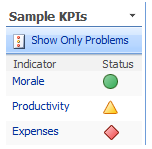
targets, task completion status etc. KPI’s provide a visual representation of
the current status of the variable under study.
Monday, September 10, 2012
Publishing Reporting Services reports to SharePoint in Native Mode
Reporting Services reports can be published to
SharePoint using 2 modes, Native and SharePoint Integration Mode, here we shall
see on how to publish a Reporting Services Report to a SharePoint Page in the Native
mode.
Publishing Reporting Services reports to SharePoint in SharePoint Integration mode
Reporting
Services reports can be published to SharePoint using 2 modes, Native and
SharePoint Integration Mode, here we shall see on how to publish a Reporting
Services Report to a SharePoint Library in the SharePoint Integration mode.
Configure Reporting Services SharePoint Integration Mode
Integrating SQL Server Reporting Services with SharePoint
The SQL Server Reporting service can be integrated with
SharePoint to display the Reporting services reports in SharePoint pages and
dashboards.
Integration Modes
The Reporting Services can be configured to work with SharePoint in 2 modes Native & Share Point Integration Mode.
Native Mode: In the Native mode, the reports are created, stored and processed in the reporting server itself, to display these reports in SharePoint we can use the Reporting Services web parts, provide the URL of the Report Manager instance and the actual Report to be displayed, and the report will get displayed in the Web part.
Integration Modes
The Reporting Services can be configured to work with SharePoint in 2 modes Native & Share Point Integration Mode.
Native Mode: In the Native mode, the reports are created, stored and processed in the reporting server itself, to display these reports in SharePoint we can use the Reporting Services web parts, provide the URL of the Report Manager instance and the actual Report to be displayed, and the report will get displayed in the Web part.
Integrates with WSS 3.0 Also
Windows SharePoint Server 3.0 does not have the Reporting Center and Dashboard features. By integrating Reporting Services with WSS 3.0 we can create our own dashboard like pages and display reporting services reports using the Reporting Services web parts.
Reporting Services in SharePoint
Reporting
services also called SSRS (SQL Server Reporting Services) is a Reporting tool
which comes packed with SQL Server. It is a server-based reporting platform,
which produces a variety of reports based on different data sources.
The Reports created using Reporting Services can be integrated with SharePoint and can be displayed in SharePoint pages / web parts.
The Reports created using Reporting Services can be integrated with SharePoint and can be displayed in SharePoint pages / web parts.
Wednesday, September 5, 2012
Changing cell value of a Published Excel Workbook using Excel Web services
Excel Web Services can be used to update data to Published Excel Work Sheets, in this post is will go through the steps to update data programatically using Excel Web Services, to a Published Excel worksheet.
In this example we will use the following Spreadsheet “Estimation.xlsx”, published in the “Excel Sheets” Document Library
http://vpc/Docs/Excel%20Sheets/Estimation.xlsx

6. Create and instance of the
service and set default credentials.
7. Get the Session ID for the current connection.
string sessionId = objExcel.OpenWorkbook(strWorkbookPath, "en-US", "en-US", out outStatus);
9. The values of the cells get updated, and can be checked by reading them back using the GetCell method.
10. In SharePoint 2007, the updated values get lost once the connection gets closed, SharePoint 2010 introduces the following new methods to update the values permanently in the workbook.
OpenWorkbookForEditing()
SaveWorkbook()
Here is the full code
using System;

1. Open the application from which needs to update data
to the Published Excel Worksheet using Excel Web Services.
2. I will use an Asp.Net web application to update the data.
3. Add a Web Reference to the Excel Web Services path.
2. I will use an Asp.Net web application to update the data.
3. Add a Web Reference to the Excel Web Services path.
http://<SiteName>/_vti_bin/excelservice.asmx
In my Server the path is
http://vpc/_vti_bin/excelservice.asmx
http://vpc/_vti_bin/excelservice.asmx
4. Name the Web reference as
ExcelWebService, VS.Net will create the proxy files to access to Web Service.
5. Create variables to store sheet name & file path
string strSheetName = "Estimation";
5. Create variables to store sheet name & file path
string strSheetName = "Estimation";
string
strWorkbookPath = "http://vpc/Docs/Excel%20Sheets/Estimation.xlsx";
In this example we will use the following Spreadsheet “Estimation.xlsx”, published in the “Excel Sheets” Document Library
http://vpc/Docs/Excel%20Sheets/Estimation.xlsx
ExcelWebService.ExcelService
objExcel = new ExcelWebService.ExcelService();
objExcel.Credentials = System.Net.CredentialCache.DefaultCredentials;
7. Get the Session ID for the current connection.
string sessionId = objExcel.OpenWorkbook(strWorkbookPath, "en-US", "en-US", out outStatus);
8. Enter the cell values to be
updated and click the update button in the Asp.net page.
In this
example we will set the Estimated and Actual hours spent for Estimation from
the Sheet.
Cells are accessed with a Zero based index.
Cells are accessed with a Zero based index.
objExcel.SetCell(sessionId, strSheetName, 2, 2, txtEstimate.Text);
objExcel.SetCell(sessionId,
strSheetName, 2, 3, txtActual.Text);
objExcel.CalculateWorkbook(sessionId,
ExcelWebService.CalculateType.Recalculate);
9. The values of the cells get updated, and can be checked by reading them back using the GetCell method.
10. In SharePoint 2007, the updated values get lost once the connection gets closed, SharePoint 2010 introduces the following new methods to update the values permanently in the workbook.
OpenWorkbookForEditing()
SaveWorkbook()
Here is the full code
using System;
using System.Collections.Generic;
using System.Linq;
using System.Web;
using System.Web.UI;
using System.Web.UI.WebControls;
using System.Web.Services.Protocols;
namespace WebServices_ObjectModel
{
public partial class ExcelWebServices : System.Web.UI.Page
{
protected
void btnUpdate_Click(object
sender, EventArgs e)
{
string
strSheetName = "Estimation";
string
strWorkbookPath = "http://vpc/Docs/Excel%20Sheets/Estimation.xlsx";
//
ExcelWebService.ExcelService objExcel = new
ExcelWebService.ExcelService();
//
objExcel.Credentials = System.Net.CredentialCache.DefaultCredentials;
//
try
{
string
sessionId = objExcel.OpenWorkbook(strWorkbookPath,
"en-US", "en-US",
out outStatus);
//
// Update
values to the WorkBook
objExcel.SetCell(sessionId,
strSheetName, 2, 2, txtEstimate.Text);
objExcel.SetCell(sessionId,
strSheetName, 2, 3, txtActual.Text);
objExcel.CalculateWorkbook(sessionId,
ExcelWebService.CalculateType.Recalculate);
//
// Read
the values Back.
object
cellValue = objExcel.GetCell(sessionId,
strSheetName, 2, 1, false, out outStatus);
Response.Write("Task: " + cellValue.ToString() + "
");
");
cellValue = objExcel.GetCell(sessionId, strSheetName, 2, 2, false, out
outStatus);
Response.Write("Estimate: " + cellValue.ToString() + "
");
");
cellValue = objExcel.GetCell(sessionId, strSheetName, 2, 3, false, out
outStatus);
Response.Write("Actual: " + cellValue.ToString() + "
");
");
//
objExcel.CloseWorkbook(sessionId);
}
catch (SoapException ex)
{
Response.Write("SOAP Exception : " + ex.Message);
}
}
}
}
Output:
Related Posts
Excel Services
Excel Services in SharePoint
Components of Excel Services
Publishing Excel Worksheets using Excel Service
Excel Web Services
Reading data from a Published Excel Workbook using Excel Web services
Updating data to a Published Excel Workbook using Excel Web services
Excel Services
Excel Services in SharePoint
Components of Excel Services
Publishing Excel Worksheets using Excel Service
Excel Web Services
Reading data from a Published Excel Workbook using Excel Web services
Updating data to a Published Excel Workbook using Excel Web services
Reading data from a Published Excel Workbook using Excel Web services
Excel Web Services can be used to query data from Published Excel Work Sheets, in this post is will go through the steps to read data programatically using Excel Web Services, from a Published Excel worksheet.
2. I will use an Asp.Net web application to read the data.
3. Add a Web Reference to the Excel Web Services path.
3. Add a Web Reference to the Excel Web Services path.
http://<SiteName>/_vti_bin/excelservice.asmx
In my Server the path is
http://vpc/_vti_bin/excelservice.asmx
http://vpc/_vti_bin/excelservice.asmx
4. Name the Web reference as
ExcelWebService, VS.Net will create the proxy files to access to Web Service.
5. Create variables to store sheet name, file path and the Status
string strSheetName = "Estimation";
5. Create variables to store sheet name, file path and the Status
string strSheetName = "Estimation";
string
strWorkbookPath = "http://vpc/Docs/Excel%20Sheets/Estimation.xlsx";
ExcelWebService.Status[] outStatus;
In this example we will use the following Spreadsheet “Estimation.xlsx”, published in the “Excel Sheets” Document Library
http://vpc/Docs/Excel%20Sheets/Estimation.xlsx
6. Create and instance of the
service and set default credentials.
ExcelWebService.ExcelService objExcel = new ExcelWebService.ExcelService();
ExcelWebService.ExcelService objExcel = new ExcelWebService.ExcelService();
objExcel.Credentials = System.Net.CredentialCache.DefaultCredentials;
7. Get the Session ID for the current connection.
string sessionId = objExcel.OpenWorkbook(strWorkbookPath, "en-US", "en-US", out outStatus);
8. Get the cell values and display
it in the Asp.net page.
In
this example we will get the Estimated and Actual hours spent for Estimation
from the Sheet.
Cells are accessed with a Zero based index.
object cellValue = objExcel.GetCell(sessionId, strSheetName, 2, 1, false, out outStatus);
Cells are accessed with a Zero based index.
object cellValue = objExcel.GetCell(sessionId, strSheetName, 2, 1, false, out outStatus);
Response.Write("Task:
" + cellValue.ToString() + "
");
");
cellValue = objExcel.GetCell(sessionId,
strSheetName, 2, 2, false, out outStatus);
Response.Write("Estimate:
" + cellValue.ToString() + "
");
");
cellValue = objExcel.GetCell(sessionId,
strSheetName, 2, 3, false, out outStatus);
Response.Write("Actual:
" + cellValue.ToString() + "
");
");
//
objExcel.CloseWorkbook(sessionId);
Here is the full code and Output
using System;
using System.Collections.Generic;
using System.Linq;
using System.Web;
using System.Web.UI;
using System.Web.UI.WebControls;
using System.Web.Services.Protocols;
namespace WebServices_ObjectModel
{
public partial class ExcelWebServices : System.Web.UI.Page
{
string
strSheetName = "Estimation";
string
strWorkbookPath = "http://vpc/Docs/Excel%20Sheets/Estimation.xlsx";
ExcelWebService.Status[] outStatus;
//
protected
void Page_Load(object
sender, EventArgs e)
{
ExcelWebService.ExcelService
objExcel = new ExcelWebService.ExcelService();
//
objExcel.Credentials = System.Net.CredentialCache.DefaultCredentials;
//
try
{
string
sessionId = objExcel.OpenWorkbook(strWorkbookPath, "en-US",
"en-US", out
outStatus);
//
object
cellValue = objExcel.GetCell(sessionId, strSheetName, 2, 1, false, out
outStatus);
Response.Write("Task: " + cellValue.ToString() + "
");
");
cellValue =
objExcel.GetCell(sessionId, strSheetName, 2, 2, false,
out outStatus);
Response.Write("Estimate: " + cellValue.ToString() + "
");
");
cellValue =
objExcel.GetCell(sessionId, strSheetName, 2, 3, false,
out outStatus);
Response.Write("Actual: " + cellValue.ToString() + "
");
");
//
objExcel.CloseWorkbook(sessionId);
}
catch
(SoapException ex)
{
Response.Write("SOAP Exception : " + ex.Message);
}
}
}
}
OutputTask: Requirements
Estimate: 150
Actual: 175
Related Posts
Excel Services
Excel Services in SharePoint
Components of Excel Services
Publishing Excel Worksheets using Excel Service
Excel Web Services
Reading data from a Published Excel Workbook using Excel Web services
Updating data to a Published Excel Workbook using Excel Web services
Excel Services
Excel Services in SharePoint
Components of Excel Services
Publishing Excel Worksheets using Excel Service
Excel Web Services
Reading data from a Published Excel Workbook using Excel Web services
Updating data to a Published Excel Workbook using Excel Web services
Excel Web Services
Excel Web Services
are a set of Web Service APIs which can be used by developers to access
published Excel workbooks, read data from the workbooks, updated data to the
workbooks etc.
The Excel Web Services provide a Session object which should be used to make successive calls to the web services, so that SharePoint will be able to identify all requests which come from a single application/service. This Session ID should be passed with all requests which are made from the current connection to maintain state.
The Excel Web Services provide a Session object which should be used to make successive calls to the web services, so that SharePoint will be able to identify all requests which come from a single application/service. This Session ID should be passed with all requests which are made from the current connection to maintain state.
Excel Web Services receives the inputs from the user and passes the same to Excel Calculation Services (ECS), ECS is responsible for performing the updates to the published Excel sheets, this interaction is abstracted from the user and happens internally, the user just needs to invoke the appropriate web service methods to query/update the data.
The List of Excel web services is available in the following path in the SharePoint server.
http:////_vti_bin/excelservice.asmx In my Server the path is
http://vpc/_vti_bin/excelservice.asmx
Where vpc is the default site created by SharePoint
2007
Calculate
CalculateA1
CalculateWorkbook
CancelRequest
CloseWorkbook
GetApiVersion
GetCell
GetCellA1
GetRange
GetRangeA1
GetSessionInformation
GetWorkbook
OpenWorkbook
Refresh
SetCell
SetCellA1
SetRange
SetRangeA1
For details on each of these web methods refer to the following Microsoft’s page.
http://msdn.microsoft.com/en-us/library/ff384274(v=office.12).aspx
Related Posts
Excel Services
Excel Services in SharePoint
Components of Excel Services
Publishing Excel Worksheets using Excel Service
Excel Web Services
Reading data from a Published Excel Workbook using Excel Web services
Updating data to a Published Excel Workbook using Excel Web services
Excel Services
Excel Services in SharePoint
Components of Excel Services
Publishing Excel Worksheets using Excel Service
Excel Web Services
Reading data from a Published Excel Workbook using Excel Web services
Updating data to a Published Excel Workbook using Excel Web services
Publishing Excel Worksheets using Excel Service
Excel Work Books and individual Excel sheets can be published in SharePoint server, once Published the sheets can be viewed by other users in their Browser, they need not have MS Office Installed in their PC.
To Publish an Excel WorkBook in a SharePoint server use the following Steps.
1. Create a new Document Library, to store the Excel workbooks which needs to be published.
2. Add the newly created Document Library to the list of Trusted Locations.
(For a Spread Sheet to be published in SharePoint it should be placed in a Trusted location.)
3. To Add the Document Library to a Trusted Location open the Central Administrator Site.
4. Click on the Shared Service under Shared Service Administration.


10. Once done, click on the Office icon and select the Publish -> Excel Services.


13. Select the sheets which needs to be published, in this case we will select only the Estimation sheet.

16. Click on the option to Open tool pane

19. Select the Worksheet to be published and Click OK

To Publish an Excel WorkBook in a SharePoint server use the following Steps.
1. Create a new Document Library, to store the Excel workbooks which needs to be published.
2. Add the newly created Document Library to the list of Trusted Locations.
(For a Spread Sheet to be published in SharePoint it should be placed in a Trusted location.)
3. To Add the Document Library to a Trusted Location open the Central Administrator Site.
4. Click on the Shared Service under Shared Service Administration.
5. Under Excel Services Settings click on Trusted File Locations.
6. Click Add Trusted File Locations.
7. Enter the full path of the Document Library, enter a Description, Check the Checkboxes “Trusted data connection libraries & embedded” and “Children Trusted”.
8. Leave the other default settings, click OK.

9. Now open an Excel Workbook, enter data and create a chart in Excel
10. Once done, click on the Office icon and select the Publish -> Excel Services.

11. Select a location to save the file.
12. Click the Excel Services Options button.
13. Select the sheets which needs to be published, in this case we will select only the Estimation sheet.

14. Click Ok -> Click Save. Upload the Spreadsheet
to the Document Library which we created earlier.
If you
have access to the SharePoint server from the machine where you create the
Excel Worksheet, then you can publish
it directly to the SharePoint Document Library.
Office button -> Publish -> Excel Services, fill in
the URL to the document library where you want to save your Excel spreadsheet. The workbook will get save to the Document
Library automatically.
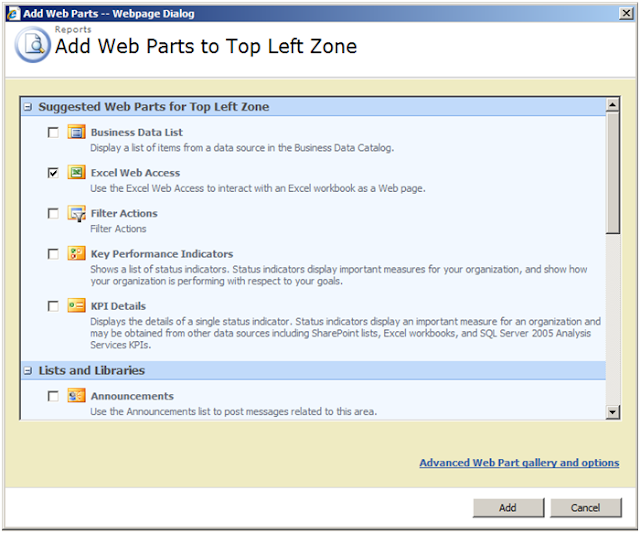
15. Now, go back to SharePoint, Open the page
where you wish to host your Excel Charts
-> Edit Page
-> Add New Web Part
-> Select Excel Web Access Webpart, click Add

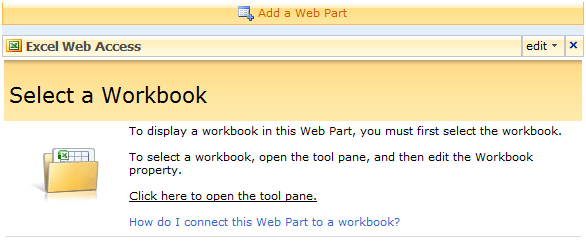
16. Click on the option to Open tool pane
17. Select Workbook dialog in the Tools pane.
18. Enter the relative path of the Document Library, in the Location Box
/Docs/Excel
Sheets/Forms/AllItems.aspx
19. Select the Worksheet to be published and Click OK
20. In the Tools Pane Click Apply.
21. The worksheet will get displayed inside the Web Part.
22. Click Ok and close the Tools Pane.
23. The Worksheet is now added to the page.
The Worksheet is finally Published in SharePoint
Related Posts
Excel Services
Excel Services in SharePoint
Components of Excel Services
Publishing Excel Worksheets using Excel Service
Excel Web Services
Reading data from a Published Excel Workbook using Excel Web services
Updating data to a Published Excel Workbook using Excel Web services
Excel Services
Excel Services in SharePoint
Components of Excel Services
Publishing Excel Worksheets using Excel Service
Excel Web Services
Reading data from a Published Excel Workbook using Excel Web services
Updating data to a Published Excel Workbook using Excel Web services
Subscribe to:
Posts (Atom)